

Today, with the increasing demand for networks, dual-band 4G routers have become the choice of many users with their excellent performance and wide applicability, especially industrial dual-band 4G routers, which play an important role in complex industrial environments and scenarios with high network requirements. Here is a detailed guide to dual-band 4G router installation.
Preparation before installation
Confirm equipment and accessories: Check the packaging of the dual-band 4G router to ensure that it includes the router host, power adapter, 4G antenna, WiFi antenna, manual, warranty card, etc. For industrial dual-band 4G routers, there may also be some special accessories, such as rail mounting kits.
Understand the network environment: Know the network requirements of the application scenario, including the number of devices to be connected and the network coverage. At the same time, confirm the signal strength of the 4G network, you can check the number of 4G signal cells nearby through mobile phones and other devices, the stronger the signal, the better the Internet effect of the router.
Prepare installation tools: Tools such as screwdrivers and wrenches are required to remove and install antennas and screws on the router. If it is installed in an industrial environment, professional tools such as electric drills and network cable testers may also be required.
Installation procedure
Choose the installation location: For home or small office scenarios, the dual-band 4G router should be placed in the center of the house to achieve wider WiFi coverage. Avoid placing the router near metal objects, microwave ovens, refrigerators, etc., to prevent signal interference and attenuation. In an industrial environment, the industrial dual-band 4G router can be installed in the control cabinet using a guide rail, paying attention to staying away from strong interference sources such as large motors and frequency converters, and maintaining good ventilation and heat dissipation.
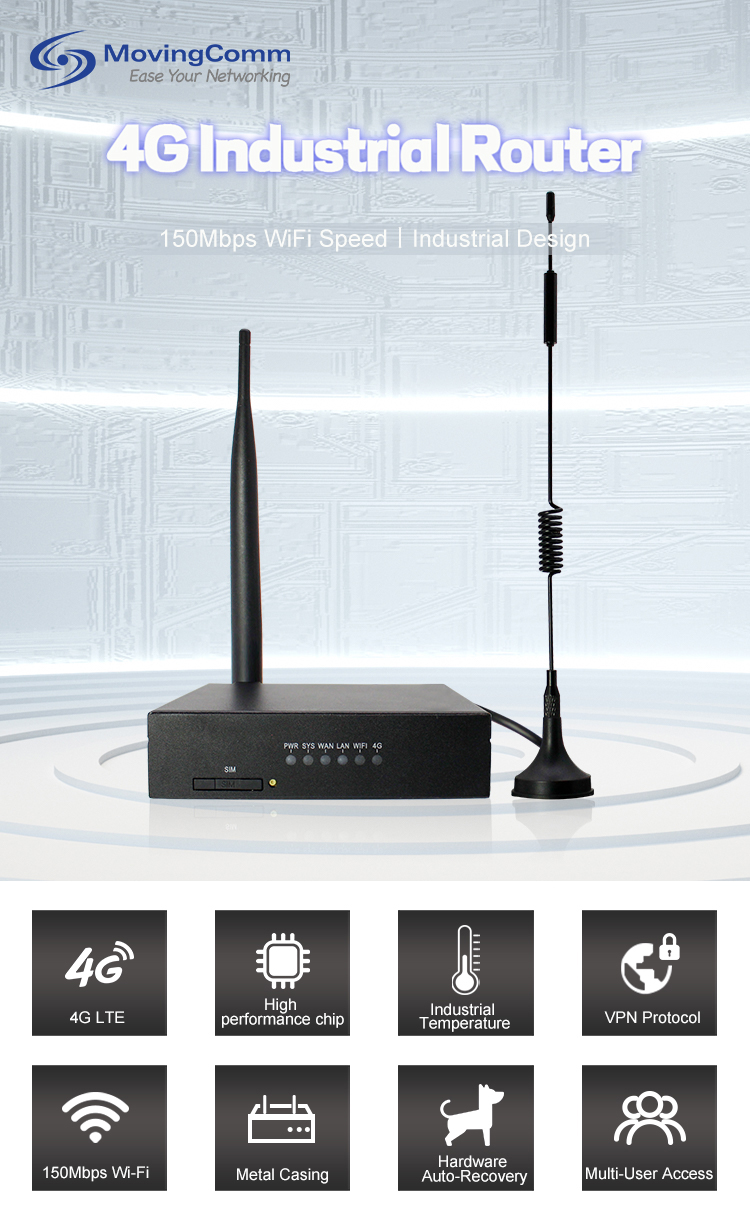
Connect the power to the antenna: Plug the power adapter into the router's power port, then connect it to a power outlet. Then, screw the 4G antenna and WiFi antenna to the corresponding interface of the router respectively to ensure that the antenna is firmly connected. For routers with multiple antennas, it is recommended that the antennas be spread out and placed vertically for better signal coverage.
Insert the SIM card: Open the SIM card slot on the router, and insert the 4G SIM card correctly in the direction indicated on the card slot. Note to turn off the router power first, insert the SIM card and then turn on the power, so that the router automatically identifies the SIM card.
Connect devices: If you need to connect devices such as computers and printers to the router, use a network cable to connect the network port of the device to the LAN port of the router. For WiFi-enabled devices, a WiFi signal can be searched for and connected to a dual-band 4G router in the device's WiFi Settings.
Configure router
Log in to the router management interface: Open the browser of the computer or mobile phone, enter the default management address of the router in the address bar, usually 192.168.1.1 or 192.168.0.1, and then press the Enter key. Enter the default user name and password to log in to the router management interface. The user name and password can be found on the instruction manual or the bottom label of the router.
Set the Internet access mode: In the router management interface, find the "Internet Access Settings" or "WAN port Settings" option, select "4G dial" or "LTE dial" and other Internet access mode. Enter information such as the APN, user name, and password corresponding to the SIM card. You can consult the carrier about the information.wireless router
Set WiFi parameters: Go to the "Wireless Settings" or "WiFi Settings" page, set the WiFi name (SSID) and password. You are advised to select a strong password to improve network security. At the same time, the 2.4GHz or 5GHz band can be selected according to the demand, or the dual band can be turned on at the same time. The 2.4GHz band has a long transmission distance and good wall-penetrating performance, but many interference sources. The 5GHz band has fast speed and less interference, but the transmission distance is close and the through-wall performance is weak.4G industrial router
Check and optimize after installation
Check the network connection: Open the web page on the device or run the network test tool to check whether the Internet can be accessed normally. Check the indicator of the router to make sure that the power, 4G, WiFi and other indicators are on normally.industrial router
Optimize signal coverage: You can optimize WiFi signal coverage by adjusting the router's position and antenna orientation. You can also use the WiFi signal detection tool on your phone to check the signal strength of different locations and adjust the location of the router according to the detection results.
Update firmware regularly: Manufacturers of dual-band 4G routers constantly release new firmware versions to fix bugs, improve performance, and add new features. Periodically log in to the router management interface to check for available firmware updates and follow the prompts.
Master the installation method of dual-band 4G router, whether it is home users or industrial users, can easily build a stable and efficient network environment, enjoy the convenience brought by high-speed network.
